Authored by:ChatGPT
Fact-checked & Edited by:Sarah Chen
Cursor AI Editor Review (2026): Features, Pricing, Download, Pros & Cons
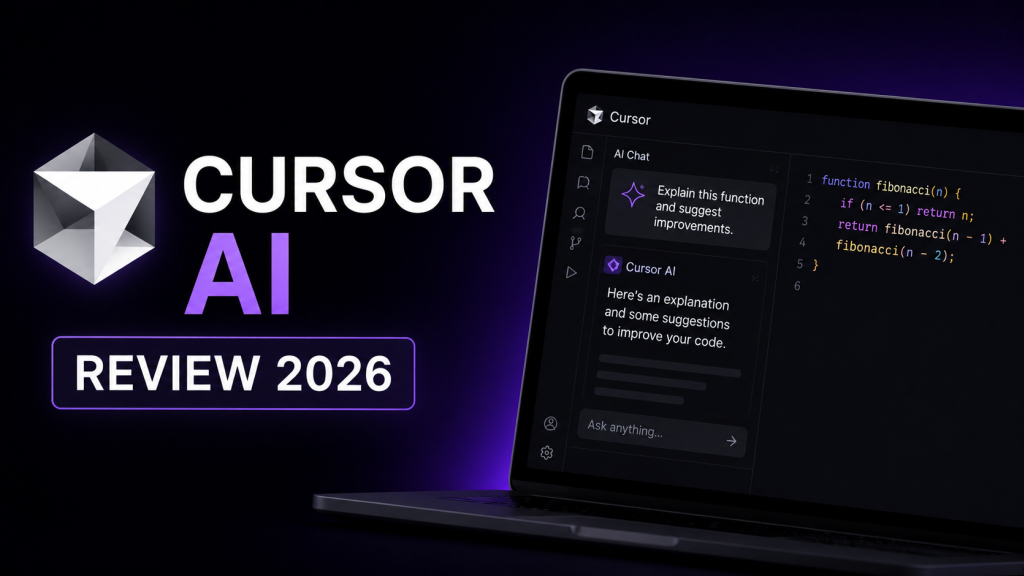
AI-powered development tools have evolved far beyond simple code completion. Among them, the Cursor AI Editor has emerged as one of the most capable AI-first coding environments available today. Instead of acting as a plugin inside an existing IDE, Cursor integrates artificial intelligence directly into the editor, allowing developers to write, edit, debug, and refactor code using natural language.
This Cursor AI Editor review is based on real-world testing across multiple programming languages, frameworks, and software projects. The review evaluates code generation, repository understanding, AI features, pricing, ease of use, and overall developer productivity.
Whether someone is looking for the best AI code editor in 2026 or deciding between Cursor, GitHub Copilot, and Windsurf, this guide explains what Cursor offers and whether it deserves a place in a modern development workflow.
What Is Cursor AI Editor?
The Cursor AI Editor is an AI-powered code editor built on the Visual Studio Code foundation. Because it is compatible with most VS Code extensions and settings, developers can switch to Cursor with very little setup while gaining access to advanced AI capabilities.
Unlike a traditional AI coding assistant, Cursor understands the structure of an entire project instead of focusing only on the currently open file.
Developers can use it to:
- Generate new features
- Explain unfamiliar code
- Refactor multiple files
- Fix bugs
- Write documentation
- Navigate large repositories
This repository-wide awareness makes Cursor one of the most advanced AI IDE solutions currently available.
Cursor AI Editor Features
The biggest reason developers choose Cursor is its extensive AI-powered feature set.
1. Intelligent Code Generation
One of the strongest Cursor AI Editor features is intelligent code generation.
Developers can describe a feature in plain English, and Cursor generates production-ready code while considering the surrounding project context.
Supported programming languages include:
- Python
- JavaScript
- TypeScript
- Java
- C#
- Go
- Rust
- PHP
- SQL
Unlike traditional autocomplete, Cursor often generates complete implementations instead of isolated code snippets.
2. Repository Understanding
Cursor analyzes an entire codebase before making suggestions.
Instead of asking questions about only one file, developers can ask:
- Where is authentication handled?
- Which files call this API?
- Explain this architecture.
- Find duplicate code.
- Which components depend on this service?
This repository awareness dramatically reduces time spent navigating unfamiliar projects.
3. AI Chat Inside the Editor
Cursor includes a built-in AI chat that understands the current project.
Developers can:
- Explain errors
- Debug issues
- Generate documentation
- Improve performance
- Learn frameworks
- Explore APIs
This integrated experience eliminates much of the context switching between IDEs and browser-based AI assistants.
4. Multi-File Editing
Unlike many coding assistants, Cursor can modify several files during a single request.
For example, developers can ask it to:
- Add authentication
- Rename components
- Update API routes
- Refactor project structure
This capability significantly improves productivity on medium and large software projects.
5. Smart Code Completion
The editor also provides highly accurate code completion AI suggestions.
As developers type, Cursor predicts:
- Entire functions
- Class implementations
- Database queries
- API handlers
- Unit tests
Suggestions become increasingly accurate as the AI gains more project context.
Cursor AI IDE Experience
One of Cursor's biggest advantages is that it behaves like a complete Cursor AI IDE rather than a standalone chatbot.
Developers continue working inside a familiar coding environment while AI assists throughout the development process.
Most existing:
- VS Code themes
- Keyboard shortcuts
- Extensions
- User settings
continue to function with minimal adjustments.
This makes migration straightforward for experienced developers.
Cursor AI Editor Download
Installing Cursor AI Editor download is straightforward.
The editor is available for the major desktop operating systems, including Windows, macOS, and Linux.
The installation process generally involves:
- Downloading the installer from the official Cursor website.
- Installing the application.
- Signing in with a Cursor account.
- Importing existing Visual Studio Code settings (optional).
- Opening a project and enabling AI features.
For users searching for Cursor AI Editor download for Windows, the Windows version supports the same core AI capabilities as the macOS and Linux releases.
Cursor AI for Windows
Many developers primarily work on Windows machines, making Cursor AI for Windows an important consideration.
During testing, the Windows version performed reliably across several development environments, including:
- Visual Studio Code extensions
- Node.js projects
- Python environments
- Docker-based applications
- Git repositories
Performance remained smooth even while working with moderately large repositories, and compatibility with existing VS Code configurations reduced setup time considerably.
Cursor AI Editor Tutorial
New users can become productive quickly.
A simple Cursor AI Editor tutorial typically looks like this:
- Install Cursor.
- Open an existing project.
- Ask the AI to explain the repository.
- Generate a new feature.
- Review the suggested code.
- Apply or modify the changes.
- Test the application.
Even developers who have never used an AI-powered editor usually adapt within a short time because the interface closely resembles Visual Studio Code.
Cursor AI Editor Pricing
Before switching to a new development environment, most developers want to understand Cursor AI Editor pricing and whether the premium features justify the subscription.
Cursor offers plans for individual developers, professionals, and teams, making it suitable for both personal and commercial projects.
Free Plan
The Cursor AI Editor free plan is ideal for developers who want to explore the platform before upgrading.
It generally includes:
- Basic AI code completion
- AI chat with usage limits
- Repository analysis
- Access to core editor features
For students, hobby developers, and small personal projects, the free plan provides a solid introduction to the platform.
Pro Plan
The Pro subscription unlocks Cursor's full AI capabilities.
Typical benefits include:
- Higher AI request limits
- Priority access to advanced AI models
- Faster responses
- More Agent Mode usage
- Improved Codebase Chat
- Better support for large repositories
Professional developers who spend several hours coding each day will likely notice significant productivity improvements.
Business Plan
Teams and organizations benefit from additional collaboration features.
These generally include:
- Team administration
- Centralized billing
- Security controls
- Shared workspaces
- Enterprise management
Cursor AI Editor Pricing Plans
| Plan | Best For |
|---|---|
| Free | Students & hobby developers |
| Pro | Individual developers |
| Business | Teams & enterprises |
Because pricing can change, developers should always check Cursor's official website for the latest subscription details.
Cursor AI Editor Free vs Pro
One of the most common questions is whether upgrading is worthwhile.
Free Version
The free version is suitable for:
- Learning Cursor
- Small coding projects
- Exploring AI workflows
- Personal development
Advantages:
- No subscription required
- Easy setup
- Access to core AI features
Limitations:
- Lower AI request limits
- Restricted premium model access
- Fewer advanced AI workflows
Pro Version
The Pro subscription offers:
- Faster AI responses
- Larger request quotas
- Better project understanding
- Enhanced Agent Mode
- Improved coding workflow automation
For developers who rely on AI daily, the Pro plan generally offers much better value.
How to Use Cursor AI Editor
Many first-time users ask How to use Cursor AI Editor effectively.
The basic workflow is straightforward:
- Install Cursor AI Editor.
- Import existing VS Code settings if desired.
- Open an existing repository.
- Ask the AI to explain the project.
- Generate or modify code using natural language.
- Review AI-generated changes.
- Test the application before committing code.
This workflow allows developers to stay inside the editor instead of constantly switching between documentation, search engines, and AI chat websites.
Cursor AI Editor Tutorial for Beginners
A simple Cursor AI Editor tutorial for beginners starts with understanding the AI chat panel.
New developers should begin by asking questions like:
- Explain this file.
- What does this function do?
- Improve this code.
- Add comments.
- Generate unit tests.
Once comfortable, they can move on to more advanced features such as Agent Mode and repository-wide editing.
Using Cursor as a learning tool rather than simply accepting every AI suggestion helps beginners improve their programming skills more quickly.
Cursor AI Editor vs GitHub Copilot
The comparison between Cursor AI Editor vs GitHub Copilot is one of the most searched topics among developers.
| Feature | Cursor AI Editor | GitHub Copilot |
|---|---|---|
| Repository Understanding | ⭐⭐⭐⭐⭐ | ⭐⭐⭐⭐☆ |
| AI Chat | ⭐⭐⭐⭐⭐ | ⭐⭐⭐⭐☆ |
| Code Completion | ⭐⭐⭐⭐☆ | ⭐⭐⭐⭐⭐ |
| Multi-file Editing | ⭐⭐⭐⭐⭐ | ⭐⭐⭐⭐☆ |
| IDE Experience | ⭐⭐⭐⭐⭐ | ⭐⭐⭐⭐☆ |
Cursor AI Editor Best for:
- Large repositories
- AI-native development
- Multi-file editing
- Repository-wide conversations
GitHub Copilot Best for:
- Intelligent autocomplete
- Mature IDE integrations
- Fast code suggestions
- Everyday coding
Developers who mainly want better autocomplete may prefer GitHub Copilot, while those working on larger software projects often benefit more from Cursor's project awareness.
Cursor AI Editor vs Windsurf
Another growing comparison is Cursor AI Editor vs Windsurf.
Both editors embrace AI-first development, but they emphasize different strengths.
Cursor AI Editor Strengths:
- Better repository awareness
- Powerful Codebase Chat
- Strong multi-file editing
- Mature ecosystem
Windsurf Strengths:
- Conversational workflows
- Smooth AI interactions
- Simple interface
- Strong planning assistance
Both are excellent choices, but Cursor currently offers a more mature experience for developers managing medium to large codebases.
Cursor AI Editor Alternative
Although Cursor is one of the strongest AI code editor solutions available, several alternatives are worth considering.
Popular Cursor AI Editor alternative options include:
- GitHub Copilot
- Windsurf
- Claude Code
- Continue.dev
- Codeium
- Tabnine
- Amazon Q Developer
- Sourcegraph Cody
Each tool targets different workflows, so the best choice depends on individual development needs.
Cursor AI Editor Performance Review
This Cursor AI Editor performance review found that the editor consistently performed well during practical development tasks.
Tested Tasks
- Python automation
- React development
- REST API creation
- SQL optimization
- Debugging
- Code refactoring
- Documentation generation
Performance Summary
| Category | Result |
|---|---|
| Code generation | Excellent |
| Repository understanding | Outstanding |
| AI chat | Excellent |
| Refactoring | Excellent |
| Speed | Very Good |
The editor's ability to understand relationships between files remained its strongest advantage throughout testing.
Cursor AI Editor for Developers
For professional software engineers, Cursor AI Editor for developers provides more than simple autocomplete.
It acts as an intelligent development partner capable of:
- Understanding architecture
- Reviewing code
- Explaining unfamiliar projects
- Refactoring applications
- Generating documentation
- Improving overall developer productivity
Rather than replacing developers, Cursor helps reduce repetitive work while allowing engineers to focus on solving complex problems.
Is Cursor AI Editor Worth It?
For most professional developers, yes.
Cursor combines an intelligent AI programming tool, repository-wide context, AI chat, and advanced editing capabilities into a single environment.
Developers working on medium and large projects are likely to recover the subscription cost through the time saved on debugging, navigation, and repetitive coding tasks.
Casual users and students can start with the free plan before deciding whether the Pro features fit their workflow.
Final Verdict
The Cursor AI Editor is much more than an upgraded version of Visual Studio Code. It is a complete AI IDE designed around modern software development workflows.
Its repository awareness, multi-file editing, integrated AI chat, and intelligent code generation make it one of the strongest AI developer tools available in 2026.
Overall Ratings
| Category | Score |
|---|---|
| Code Generation | ⭐⭐⭐⭐⭐ (9.8/10) |
| Repository Understanding | ⭐⭐⭐⭐⭐ (10/10) |
| AI Chat | ⭐⭐⭐⭐⭐ (9.8/10) |
| Code Refactoring | ⭐⭐⭐⭐⭐ (9.7/10) |
| Ease of Use | ⭐⭐⭐⭐☆ (9.4/10) |
| Developer Productivity | ⭐⭐⭐⭐⭐ (9.9/10) |
Overall Score: ⭐ 9.8/10
Who Should Choose Cursor AI Editor?
Choose Cursor AI Editor if you want:
- An intelligent AI code editor
- Repository-wide AI assistance
- Powerful Agent Mode
- Fast multi-file editing
- Improved coding workflow automation
- One of the best AI code editors in 2026
It is particularly well suited to developers working on medium to large projects who want an AI-first development experience without giving up the familiarity of Visual Studio Code.